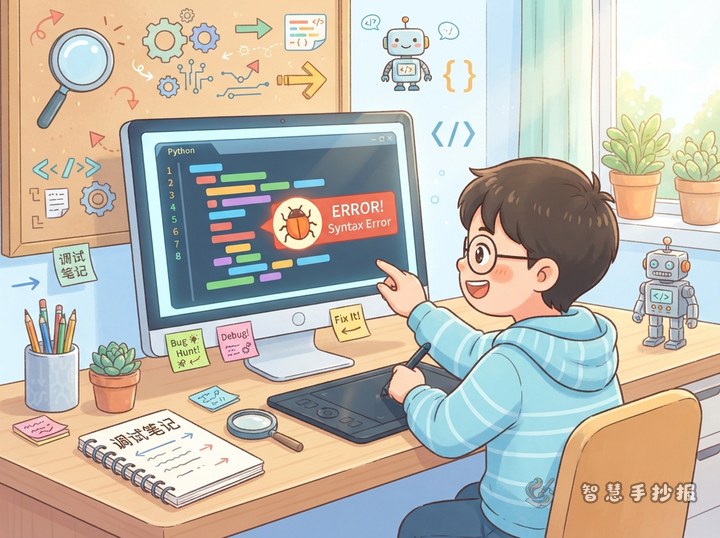

As computer files multiply, a device can become as crowded as a schoolbag filled with books, worksheets, and stationery. Without a clear system, finding one photo or assignment may take a long time. This handwritten newspaper can use the idea of organizing a digital schoolbag to explain files, folders, file names, and backups in a visual and child-friendly way.
Begin with a Digital Schoolbag
Draw a computer in the center of the page with a large folder open on its screen. Let small icons for pictures, documents, music, and videos peek out of the folder. Add a memorable line such as Sort it clearly, find it quickly; back it up, keep it safe. Comparing folders with schoolbag pockets, drawers, and labels makes the idea easy for younger students to understand.
Four Drawers for the Main Ideas
What is a file?
A file is a piece of information saved on a computer. It may be a story, photo, drawing, song, or video. Draw several colorful paper cards labeled assignment, photo, and music to give readers simple examples.
What does a folder do?
A folder works like a sorting pocket inside a schoolbag. It keeps related files together. Examples include Language Homework, Math Practice, and Travel Photos. Good folders make a computer look tidy and make information easier to find.
How should a file be named?
A useful file name tells us what the file contains and may include a date, such as Science Newspaper Draft or Weekend Reading Record. Avoid unclear names like New Document 1. The ending of a file name can also suggest its type: jpg and png are common image extensions, while docx and pdf are common document extensions.
Why do we need backups?
Important assignments and photos should not exist in only one place. They can be copied to a USB drive, external hard drive, or a reliable cloud space. Draw two matching file boxes labeled Computer and Backup, with an arrow showing that one copy is stored safely elsewhere.
Turn a File Path into a Treasure Map
This can become the most creative diagram on the page. Use a folder tree to show where information is stored, for example: Computer → Study Materials → Programming Practice → First Assignment. Explain that opening folders one by one is like following a treasure map. If the file name is known, a search box can also help locate it quickly. Add a magnifying glass and small footprints beside the tree to make the route lively.
Let the Layout Follow the Sorting Process
- Top section: Write the large title and decorate it with folders, a computer screen, or sticky labels.
- Center: Place the main computer illustration and the folder tree so readers first see how information is organized.
- Left and right sections: Arrange File Facts and Organizing Tips in separate columns, with three to five points in each.
- Bottom section: Add a short Digital Schoolbag Checklist: sort first, name clearly, back up often, and find easily.
Blue, green, and orange work well as the main colors for the computer, folders, and reminders. Use thicker lettering for section headings, keep the body text neat, and leave enough white space so the page does not feel crowded.
A Caretaker's Checklist for the Corner
- Do not delete someone else's files without permission.
- Check the source of downloaded material before saving it.
- Back up important files and occasionally check that the copies still open.
- Remove useless duplicates so the computer stays tidy.
Before finishing, check whether the title stands out, the sections are easy to distinguish, and every arrow points in the right direction. If you want to build the layout more quickly, scan to enter the 智慧手抄报 WeChat mini program, choose a clean computer-themed design, and replace the sample text with your own ideas.