Turn a Small Program into the Main Story
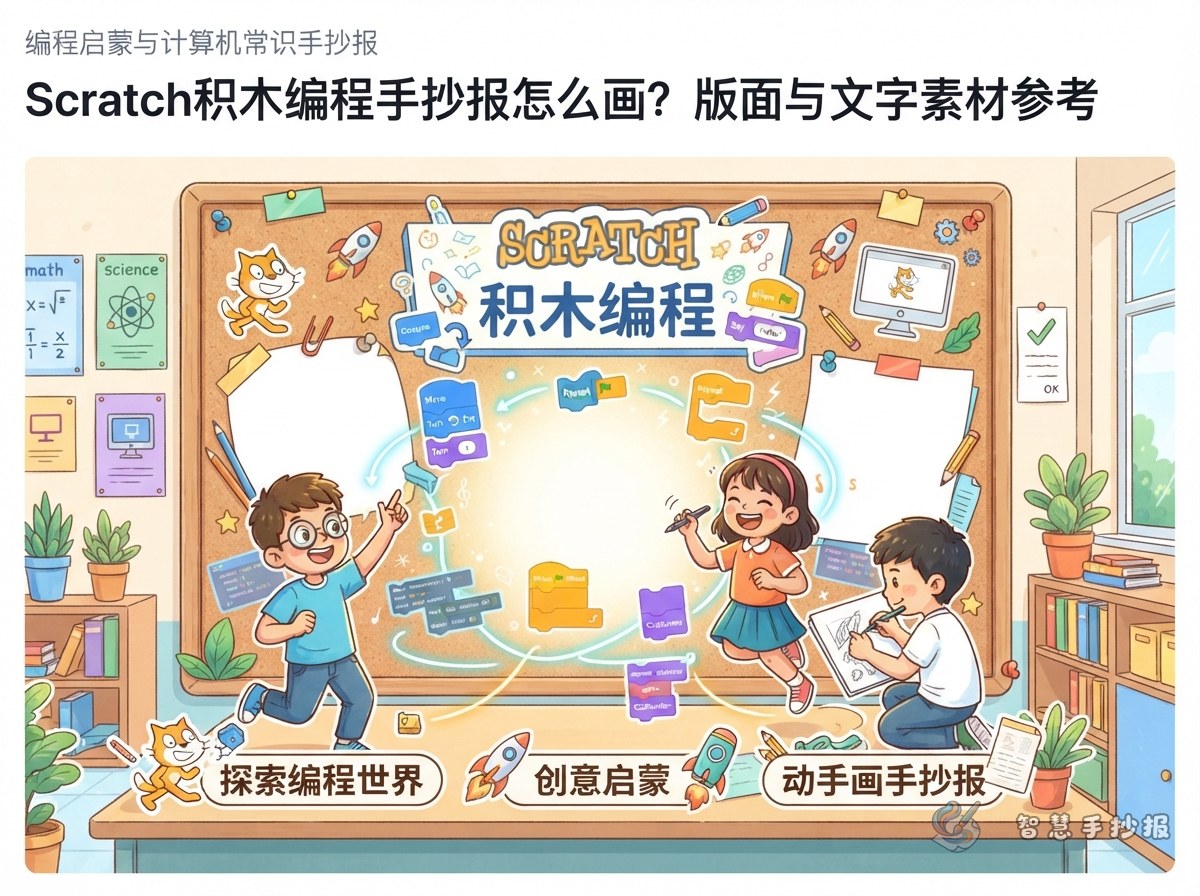
Scratch is a friendly way to learn coding with colorful blocks. Instead of listing too many technical terms, build the handwritten newspaper around a simple mission, such as “help the cat reach the treasure and say hello.” Draw the character’s journey as the reading path for the whole page.
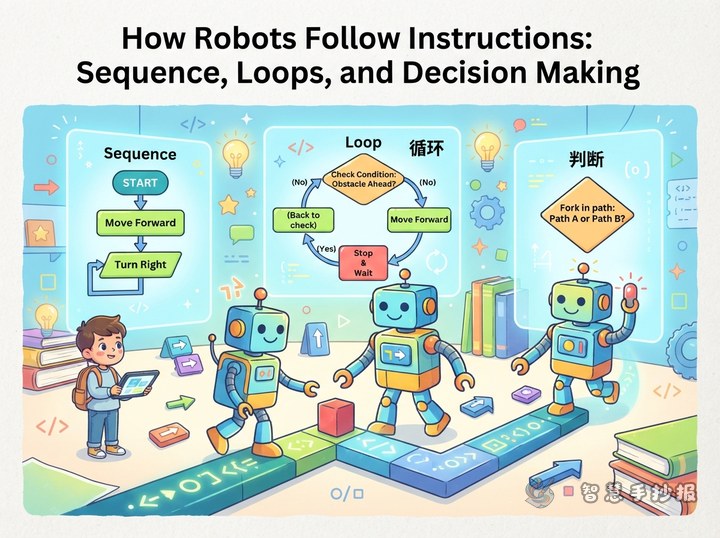
- Start: Click the green flag to begin the program.
- Action: The character moves, turns, speaks, or changes its costume.
- Loop: Repeated actions are grouped together so they do not need to be written again and again.
- Condition: The program makes different choices in different situations, such as turning when it meets an obstacle.
The sequence “receive a mission—follow instructions—respond to a situation—reach the goal” gives the page a clear flow.
Four Coding Ideas for the Main Information Panel
Use the center of the page for an enlarged block-program scene. Add short explanations beside it so readers who have never used Scratch can understand the ideas quickly.
- Sprite: A person, animal, or object in the program that follows instructions.
- Stage: The scene where the sprites act. It could be a classroom, forest, space station, or a game map.
- Instruction: A command that tells a sprite what to do next. Connected blocks form a program.
- Debugging: Checking and changing the blocks when the result is not right. It is an important part of learning to code.
Short Lines You Can Copy
“Coding means turning an idea into step-by-step instructions.”
“Blocks need the right order for a program to run clearly.”
“Do not fear mistakes: check, change, and run the program again.”
Plan the Page Around a Program Path
- Put a bold title at the top, with a green flag, mouse pointer, or colorful block nearby.
- Reserve the center for a sequence showing the character completing a mission, and connect each step with arrows.
- Create a “Meet the Blocks” section on the left for events, actions, loops, and conditions.
- Place a “Coding Tip” or “My Game Idea” section on the right for a game the student would like to design.
- Use the bottom area for a reminder: set a goal, arrange the steps, run the program, and check the result.
For a landscape page, draw the program path as a colorful road from left to right. For a portrait page, use stairs or a level map to show the program moving forward step by step.
Make the Artwork Feel Like a Colorful Coding Stage
Try blue, green, yellow, and orange for the stage, starting point, actions, and tips. Do not make the blocks too small; clear shapes are more useful than copied code. A grid, pixel squares, cursor arrows, and speech bubbles can decorate the background, but leave enough open space for the text.
The title can look like connected blocks, while section boxes can use rounded corners, arrows, or speech bubbles. Match the decoration to the idea: use a turning arrow for loops and two branching paths for conditions.
A Simple Checklist from Sketch to Finish
- Choose one easy mission and list the characters, setting, and steps.
- Use a pencil to divide the title, central path, information panels, and decoration areas.
- Write and proofread the text before outlining the blocks, characters, and arrows.
- Unify the colors and borders at the end, making the information more noticeable than the decoration.
Read the finished page from top to bottom or from left to right. Check that the program order is logical, the explanations are short, and every word is easy to read. When you want to organize the title, sections, and layout more quickly, you can continue creating in the WeChat mini program Wisdom Handwritten Newspaper.